hot scripts directory script 3.0.0 Free Featured
hot script,directory,script
Php Script
Version 3.0.0
(0)
A) Installing the MySQL Database - top
- Go to your hosting Control Panel and point to the database manager (like PHPMyAdmin)
- Create a MySQL database and ASSIGN a MySQL User to it.
Go to phpMyAdmin and the database you've just created.
Import the file located into "database_upload/clones.sql" folder. - Step two is to open database.inc.php with any text editor and update mysql database connection info
LINES 3 TO 7
B) Installing the Script - top
- Connect to your hosting and upload the extracted zip file folder of the script to your domain. (must be under either root or subdomain. No subfolders please.)
- Make sure .htaccess file is included otherwise the script will mallfunction as the file is required to do the mod_rewrite SEO friendly URL's job - this file might be hidden in some OS
C) Configure Admin Credentials - top
- After completing steps 1 & 2 please point to yoursite.com/admin.php and login with the initial default username : admin and password : login
- After entering the details point to "Configuration" section.

D) Admin : Manage Listings - top
- Navigate to your-website-url.com/admin.php and login with the credentials you've just configured earlier at step C).
- After you login, from the right side choose "Listings"
- You will see a table with all the items and their actions: delete, view and also a dropdown with status which you can update.

E) Admin : Manage Payments - top
- Navigate to your-website-url.com/admin.php and login with the credentials you've just configured earlier at step C).
- After you login, from the right side choose "Payments"
- Here you will see all featured listings (active & past ones)

F) Admin : Manage Categories - top
- Navigate to your-website-url.com/admin.php and login with the credentials you've just configured earlier at step C).
- After you login, from the right side choose "Categories"
- Here you will see all clone categories and also a form to add new ones

G) Configure Website Settings - top
- Navigate to your-website-url.com/admin.php and login with the credentials you've just configured earlier at step C).
- Select "Configuration" from the right hand form
- You will see a form with which will help you configure the following:
- Admin Email - this is where you will get a notification after an user sends you a listing for approval
- PayPal Email - this is where you will get payments from subscriptions
- Site URL - please enter the site URL which will be used to find path to css/images/etc and also in confirmation emails.
- Website SEO Title - this is HTML title tag
- Website Title - this is site title that appears in navigation header
- Analytics code - goes into html HEAD<->HEAD section
- Advertising options
- Homepage Featured - price per month to show a listing on homepage
- Category featured - price per month to show a listing highlighted in it's category
- Sidebar Featured - price per month to show a listing in sidebar top clone scripts

Alex Crivion
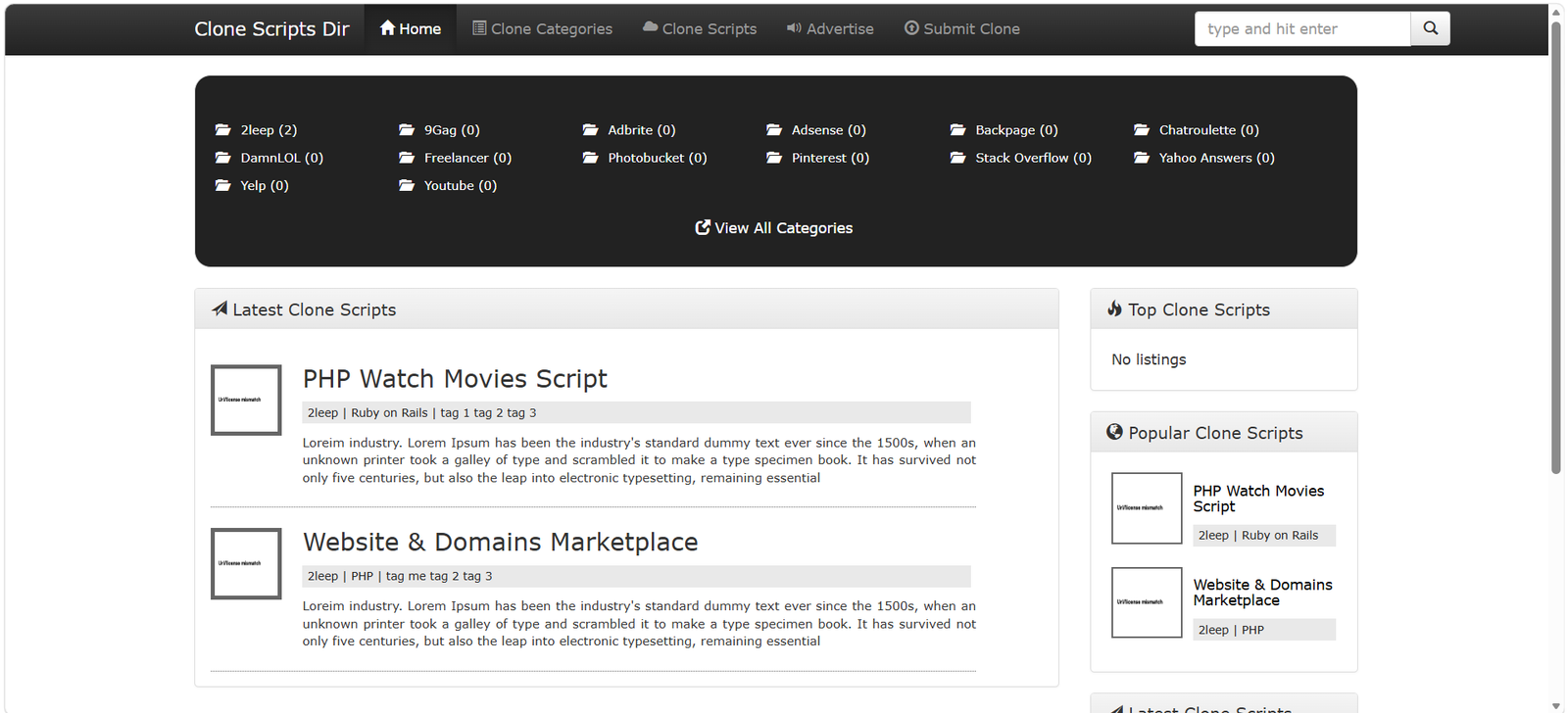
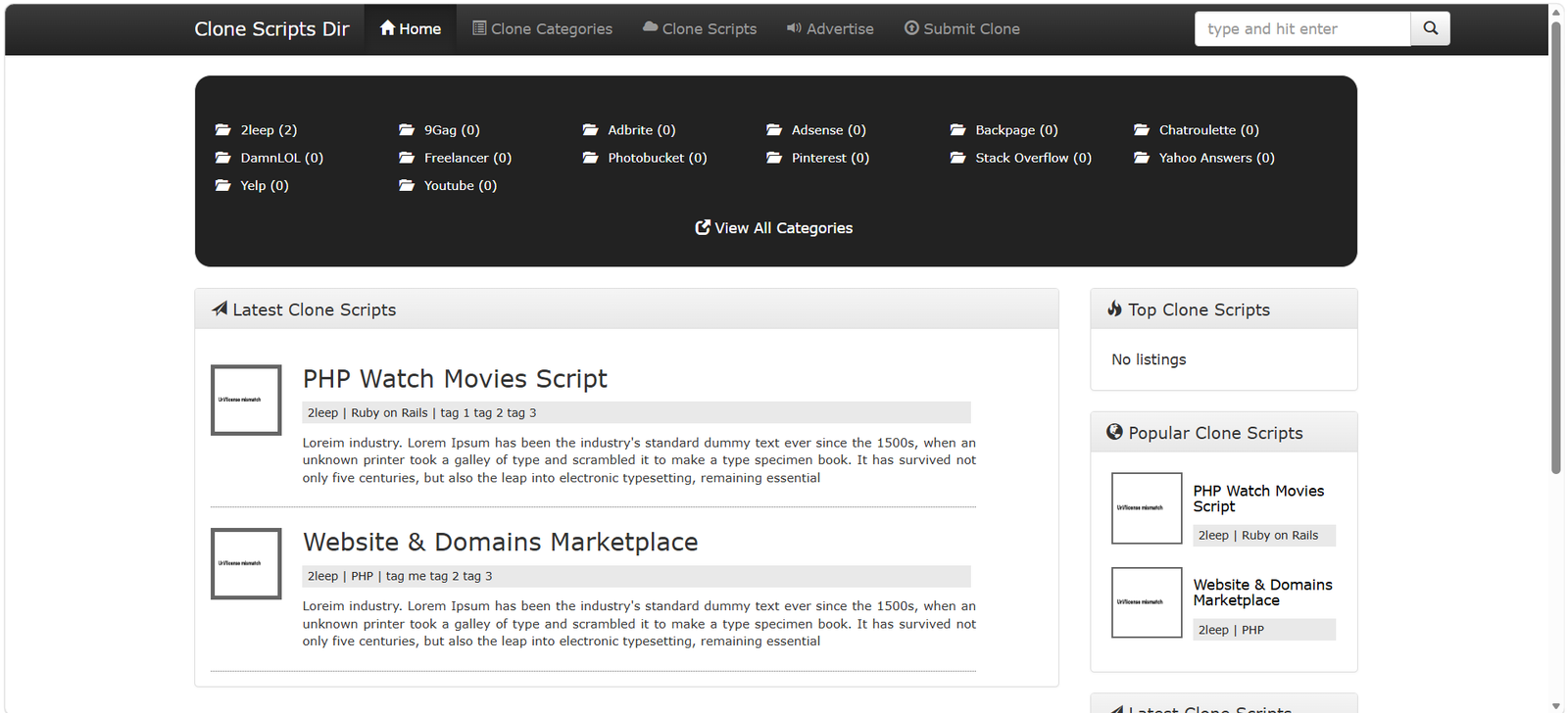
Screenshots